
SCAN LEFTOVERS
After an uninstall, Geek scans for leftover files, folders, and registry keys. You review each item before deletion, no blind bulk cleanup.
NO INSTALL · USB-READY · NATIVE SPEED
What it does: Lists software, runs uninstallers, hunts leftovers. Fast. Portable. No bloat.
By Thomas Koen.
Use the button below to download, one ZIP, no repackaged mirrors. The link is generated when you open this page (new token each visit). Avoid unofficial builds that bundle adware or modified code.
Direct from geekuninstaller.io
Latest free portable build: single EXE inside a ZIP (~6 MB), optional language files, no installer. Extract and run, no setup wizard.
geek-uninstaller , download URL is set on page load (refreshes each visit).
What you get and how to run it:
geekuninstaller.io is an independent informational site and is not affiliated with the trademark owners.
Short answer: reviewers and users praise Geek Uninstaller for speed, a tiny footprint, and control over leftovers, phrases like “uninstalls quickly,” “finds leftover files,” and “perfect for a flash drive” come up often. The app does one job: help you remove software and optional traces without installing another suite on the PC.
Geek Uninstaller has been trusted for years by power users, IT admins, and everyday Windows users who want a no-fuss way to remove software and clean up leftovers. It focuses on doing one job well instead of bundling extras you never asked for. Whether you’re cleaning up after a trial, fixing a broken install, or preparing a PC for resale, a focused uninstaller saves time and avoids the bloat of “all-in-one” optimization suites. See the step-by-step guide and troubleshooting when something won’t uninstall cleanly.
Written in native C++ for snappy launch and fast scans. No .NET or Java dependencies, runs on older PCs and lightweight setups without extra runtimes.
Single EXE on a flash drive or toolkit folder. No install, no Start Menu clutter, no registry entries, take it to any Windows machine and run.
After the vendor uninstaller runs, Geek scans for residual files, folders, and registry keys so you can review and remove what’s left behind.
Long-standing project by Thomas Koen. Featured on Softonic, Softpedia, CNET, and Lifewire. No adware, no bundle, no surprise installers.
Home users cleaning up after a trial or unwanted app. Sysadmins who need a portable uninstaller in their toolkit. Anyone tired of bloated “PC optimizers” that promise the moon and deliver clutter. If you want a fast, focused uninstaller without extra baggage, Geek Uninstaller fits.
When you uninstall a program, Windows runs the vendor’s uninstaller. That often removes the main app files but leaves behind config folders in AppData, registry keys, cached data, and shortcuts. These “leftovers” can waste disk space, cause “already installed” errors when you reinstall, or even conflict with other software. Geek Uninstaller’s leftover scan finds these traces so you can decide what to remove, with full control over shared components.
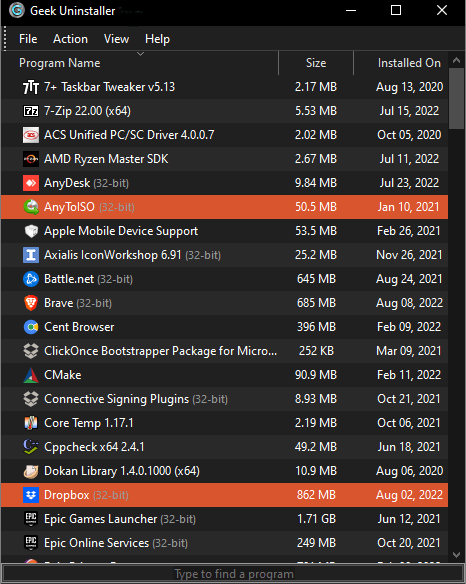
Geek Uninstaller keeps its interface straightforward: list programs, uninstall, optionally clean traces. No clutter, no upsells, just the tools you need for a thorough removal.
After an uninstall, Geek scans for leftover files, folders, and registry keys. You review each item before deletion, no blind bulk cleanup.
When a program’s uninstaller fails or the app is already half-removed, force removal clears the broken entry from Windows so you can reinstall cleanly.
One EXE. Drop it in a toolkit folder or USB drive. No installer, no system changes, run it from anywhere on any Windows PC.
One list shows both 32-bit and 64-bit programs. No switching views or juggling separate tools, everything in one place.
Type to find a program instantly. Sort by name, size, or install date to quickly locate what you want to remove.
Language packs are available so you can run Geek Uninstaller in your preferred language, great for shared or international setups.
Export your installed programs list to HTML or text for inventory, documentation, or comparing machines.
TL;DR: Download from an official link, run the program’s own uninstaller first, then review Geek’s leftover list, delete only what you recognize. Use force removal only when the normal path is broken.
Follow these steps to remove software cleanly and avoid leaving traces that can cause conflicts or clutter later.
Use the download link in the Download section below. Avoid repackaged “mirror” or third-party builds that bundle adware, toolbars, or crypto miners.
Lesser-known publishers sometimes trigger Windows SmartScreen. Verify the file came from a trusted source, then proceed only if you trust the origin. You can check the file hash if in doubt.
Right-click the app in Geek’s list and choose “Uninstall,” or double-click. Let the program’s own uninstaller run. This is the vendor-supported path and often removes services, drivers, and scheduled tasks correctly.
After the uninstaller finishes, Geek will offer to scan for leftovers. Review each suggested item before deleting. Shared folders (e.g., Microsoft, Common Files) may be used by other apps, don’t bulk-delete blindly.
Some security suites and drivers finalize removal only after restart. Skipping this can leave “phantom” entries behind. When in doubt, reboot and then run Geek again to confirm the entry is gone.
If the normal uninstall fails or the app is already half-removed, right-click the entry and choose “Force removal.” This deletes the registry entry so Windows no longer sees the app. Reinstall afterward if needed.
Geek Uninstaller doesn’t remove programs by itself. It launches the program’s built-in uninstaller, the same one you’d find in Windows Settings or Control Panel. The difference: Geek gives you a faster list, search, and size info, then runs a leftover scan afterward. Force removal is the exception, it directly removes the Windows registry entry when the normal uninstaller is broken or missing. For healthy apps, always use normal uninstall first.
When the leftover scan finishes, don’t click “Delete all.” Scroll through the list. Paths under Common Files or containing another vendor’s name may be shared, leave those unless you’re sure. Your own AppData folders for the removed app are usually safe to delete.
Common issues and practical fixes. If your problem isn’t listed, search online or contact the author via social links in the FAQ.
Portable apps may never register with Windows. Games installed via Steam, Epic, or other launchers often need removal inside that launcher. Try “Refresh” in Geek Uninstaller first. Check whether the product installed per-user vs. machine-wide, some apps show up only for the user who installed them.
Geek Uninstaller modifies registry keys, which some antivirus tools flag. If you downloaded from a trusted source and the file hash matches, add an exception or submit a false-positive report to your AV vendor.
Try running the app’s uninstaller from Windows Settings (Apps → Installed apps) once. If that also fails, the vendor’s repair tool or MSI log analysis may be needed. Force removal in Geek is a last resort for broken entries, use it only when normal uninstall no longer works.
If a path contains another vendor’s name or lives under Program Files (x86)\Common Files, pause and web-search the folder name before deletion. Shared components may be used by multiple apps.
Run Geek Uninstaller as administrator (right-click → Run as administrator). Some folders and registry keys require elevated rights. Close the program you’re uninstalling before running Geek.
Some uninstallers take several minutes, wait before force-quitting. If it’s truly stuck, close it via Task Manager and then use Geek’s force removal for the leftover entry. Reboot afterward and verify the app is gone.
Windows may warn that the publisher is unknown. Geek Uninstaller doesn’t pay for an Extended Validation (EV) certificate, so this is common. If you downloaded from the link on this page, click “More info” and then “Run anyway.” Never bypass SmartScreen for files from unknown sources.
Some apps install both 32-bit and 64-bit components, so you may see duplicates. Size estimates come from Windows, if they look off, the app may store data elsewhere. Use “Refresh” to rescan the system.
Another process is using the file. Close the program you’re uninstalling, plus any launchers or helper tools. Check Task Manager for lingering processes. Reboot and try again if needed.
Some uninstallers clean well, no leftovers. Others leave a lot. If the list is huge, focus on the app’s own folders in AppData. Skip generic paths like Temp unless you’re sure.
A quick reference for concepts you’ll encounter when uninstalling software.
Editorial publications and reader letters that describe long-term experience with Geek Uninstaller.
“The performance of Geek Uninstaller is impressive. It uninstalls quickly and finds leftover files… Highly recommended.”
“Inexperienced users shouldn’t have any troubles… thanks to its intuitive layout and overall simplicity.”
“Geek Uninstaller is perfect for anyone who wants to make sure they leave nothing behind on their system when they uninstall a program.”
“Portable and supports almost all the features anyone would expect… Perfect for flash drives because it's a single file that takes up very little space.”
“I've used other uninstallers before… your product beats them hands-down… I've never had a problem, as I did with Revo, with programs not populating the uninstall list.”
“IObit Uninstaller got rid of too much, causing other program conflict… GeekUninstaller… way better than the competition.”
“Small footprint, does exactly what it says: no bloat, no nag screens. Exactly what an uninstaller should be.”
“I keep it on my thumb drive for client machines. When something won’t uninstall properly, Geek handles it. Simple and effective.”
“After trying several uninstallers that either did too little or too much, Geek Uninstaller hit the sweet spot. Fast, lightweight, and it actually lets me decide what to remove instead of assuming.”
Here’s when Geek Uninstaller really shines, everyday situations where a focused uninstaller saves time and avoids headaches.
You tried software, decided not to buy. The trial uninstaller often leaves traces. Geek runs the normal uninstall, then scans for leftovers so you can reinstall later without “already installed” errors.
The app won’t open, and its uninstaller crashes or is missing. Force removal clears the entry from Windows so you can reinstall from scratch instead of fighting a broken state.
Before migrating or reinstalling Windows, export your program list (File → Export) for reference. After setup, use Geek from a USB to clean up bloatware or unwanted preinstalled apps.
Sort by size to find big programs you’ve forgotten. Uninstall and run the leftover scan, old config files and caches add up over time.
Sysadmins keep Geek on a USB or network share. When a user’s machine has a stubborn app or leftover mess, run it without installing anything on the target PC.
Leaving IObit, Revo, or another uninstaller? Geek won’t “fix” things aggressively, it lets you review each leftover. Many users prefer this control over automatic cleanup that sometimes breaks other apps.
Before handing off a machine, uninstall personal software and run leftover scans to reduce traces. Pair with a full Windows reset for best results. Export the program list first if you want to reinstall the same setup elsewhere.
Sometimes an upgrade or failed install leaves Windows thinking the app is still there. Geek’s force removal clears the broken entry so you can run a fresh installer without manual registry edits.
An installer crashed halfway? The app may appear in the list with a partial entry. Force removal cleans it up so you can retry or move on.
New laptops often come with trial software and vendor utilities. Run Geek from a USB, sort by install date or vendor, and remove what you don’t need.
Many uninstallers bundle cleaners, updaters, or browser extensions. Geek Uninstaller’s design goal is narrower: list programs, uninstall, optionally clean traces. Users who felt other tools were “bloated with unnecessary features” often migrate here for speed and clarity.
| Topic | Geek Uninstaller | Typical suite uninstaller |
|---|---|---|
| Focus | Uninstall + leftover scan | Often bundles extra “PC optimization” tools |
| Portability | Popular as a single-file portable EXE | Usually installer-based |
| Install size | ~6 MB single EXE | Often 50–200+ MB with extras |
| Leftover handling | You review and choose what to delete | May auto-delete; sometimes overzealous |
| Distribution | Direct ZIP from this site, no installer, no bundled store | Often includes storefronts, trials, or extra installers |
| Dependencies | None, native C++ | Often requires .NET or other runtimes |
Revo Uninstaller offers more modes and a paid Pro version, good if you want deeper scanning. Some users report programs not appearing in its list. IObit Uninstaller bundles extras and can be aggressive with leftovers. BCUninstaller is open-source and feature-rich but heavier. Windows Settings is built-in but slower and doesn’t scan leftovers. Geek Uninstaller suits those who want a lean, fast, portable tool with no install and no fluff.
Frequently asked questions about Geek Uninstaller.